Page 1 of 1
How to boot MTK devices with CM2MT2
Posted: 25 Nov 2025, 20:16
by Support
At top left select device
BARND and
MODEL
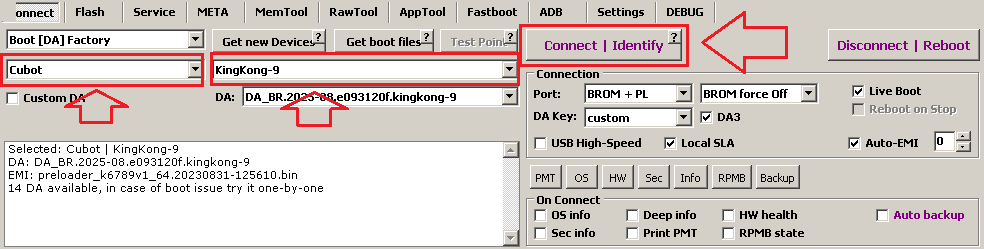
If you do not know what to select just use defaults:
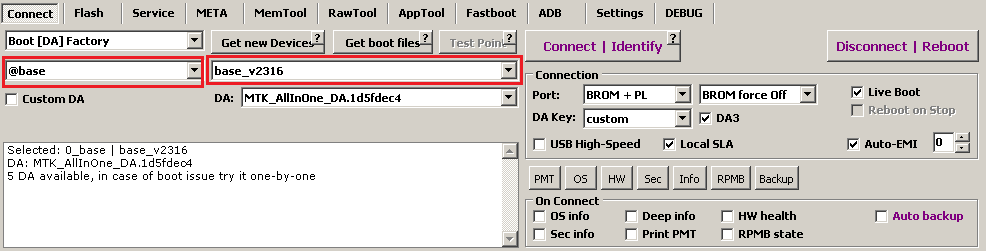
Power device Off
Click to
[Connect] button and Insert USB cable.
In most cases everything will be Ok and you will see
Boot Ok text.
Re: #CM2MT2 boot solution
Posted: 08 Mar 2026, 17:23
by Support
Problem:
...
Send DA1... Ok [Adjusted 1|2: Untold|Untold]
Jump to DA... Ok
Sync... Ok
DA version is older than required by device
or
...
Send DA1...
port reset(1)... Fail
DA1 send fail: [0x00000001] DEVICE NOT FOUND
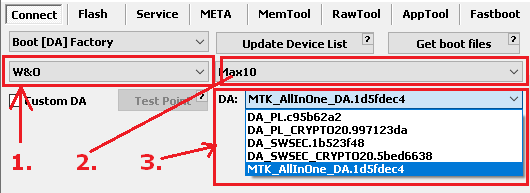
Solution:
Select another brand
(1), model
(2) or DA
(3)
Re: #CM2MT2 boot solution
Posted: 08 Mar 2026, 17:23
by Support
Problem:
Waiting for device...
[PRELOADER]...
Waiting for boot Ack...
Handshake... Ok
Jump to BROM
Wait for port... nOk
SoC is not detected
...
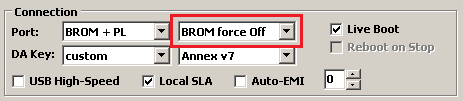
Solution:
Set
[BROM force Off]
Re: #CM2MT2 boot solution
Posted: 08 Mar 2026, 17:28
by Support
Next try: Power device Off. Press and hold
Volume UP or
Volume DOWN or both together. Insert cable.
You must see
[BOOTROM] connection but not
[PRELOADER]
Next try: Use TEST-POINT
Re: #CM2MT2 boot solution
Posted: 08 Mar 2026, 19:49
by Support
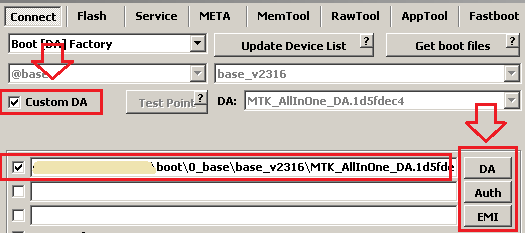
How to use custom/
own DA files with #CM2MT2: